
QR code not scanning? A practical artwork and print checklist
Separate a decoding problem from a broken destination, then test size, contrast, margins and export quality.
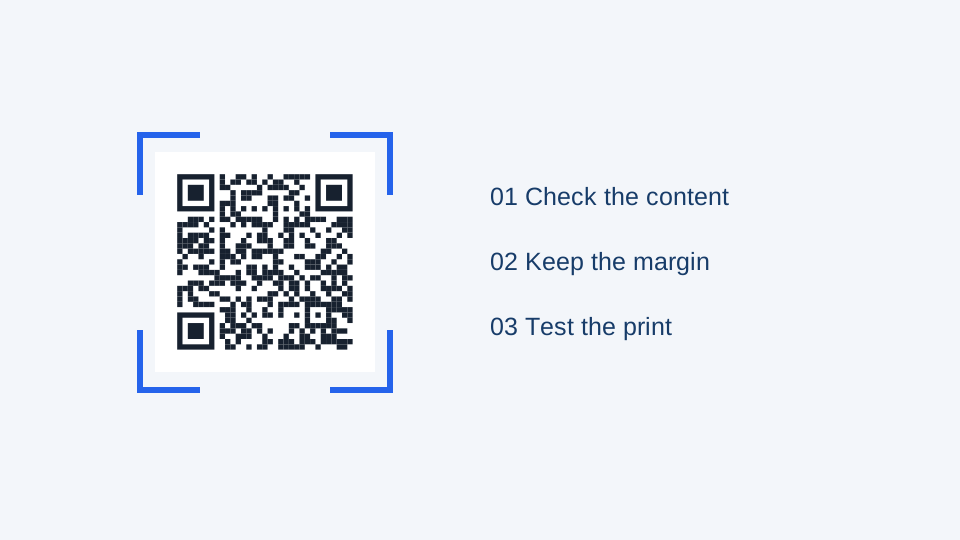
First identify what failed. If the camera never recognizes the code, investigate the image and the scanning conditions. If a link appears but its page does not open, investigate the encoded address and destination. Changing the color of a code cannot fix an unavailable website.
Check the digital file
Upload a PNG, JPEG or WebP to the QR scanner and inspect the decoded content. This browser check helps catch an incorrect payload before printing. It is not a substitute for scanning the physical label, and a successful decode does not establish that an external website is safe or currently available.
If the digital file fails too, return to the generator and try a plain dark pattern on white. Remove the logo temporarily and choose a larger export. Keep the original file so you can compare one change at a time.
Look outside the black pattern
The quiet zone is the empty margin around the matrix. A nearby border, text or photograph can interfere even when none of the dark squares appears damaged. Avoid cropping to the visible pattern. In the print studio, leave the entire QR component clear of other elements.
Look at the smallest detail
Dense content produces smaller modules at a fixed width. Use the print size checker with the exact payload. A screenshot enlarged in a document may soften the edges; download the original SVG or a suitably sized PNG instead. Exporting a small raster image as a much larger file does not restore details already lost.
Test the surface and the camera
- Move away from glare and strong reflections.
- Flatten the sample where possible; avoid placing the code across a fold.
- Clean the camera lens and let it focus at a comfortable distance.
- Try another phone and normal ambient light.
- Compare the printed sample with the original digital file.
If recognition works, check the destination
Inspect the full decoded URL for spelling and unexpected characters. For a managed QR code, check that it is active in the correct workspace and that the destination is reachable. A paused or unavailable redirect cannot be repaired by re-downloading the same image. For static codes, the encoded address is fixed; you need a new image if that address must change and you do not control its existing destination.
Record the file, printed size, material and phones used for the successful test. That gives your printer a useful acceptance reference instead of a vague “it worked on my screen.”