
QR registers: inspection records, tasks and review
Create object registers, collect private records, assign processing and review, schedule tasks and preserve original answers.
最近发布更新
本文目录
- Start with the object and the process
- Choose public information separately from private records
- Create and publish a working register
- Preserve the answer and record the processing
- Add repeating tasks when the process needs them
- Keep attachments tied to the right record
- Understand capacity before a large rollout
- Export and interpret the records
A code on a machine can open a checklist. A useful inspection system also needs to preserve what was submitted, identify which object it belonged to, show unresolved work and control who can process it. Those responsibilities are separate from generating an image.
QRCodeTransfer registers and tasks connect a stable object reference and published entry form to private records, dated processing events and, where appropriate, repeating tasks. This guide explains the workflow so you can decide whether a register, ordinary form or public information page fits the job.
Start with the object and the process
Create one register for the object whose history you need to keep: an equipment item, inspection point, inventory item or training resource. Give it a stable reference, a useful internal name and any location or description. Choose the relevant preset, then adjust the questions, options and required fields before publication.
For workflow types that depend on a condition, quantity or reading confirmation, the core field stays in place. That allows the service to interpret a submission consistently instead of treating every answer as an unrelated text block. Use an ordinary form when collecting responses is enough and you do not need an object-specific processing history.
Choose public information separately from private records
The published scan page contains only selected object information and its entry form. The complete register, processing notes and record attachments are not a public browseable history. Configure access for managers, all workspace members or selected members according to who actually needs it.
Review the public title and the option to show the object reference before publishing. Personnel records use a neutral public title by default so an internal person’s name is not automatically exposed by the scan page. Mark each additional object attribute you intend to publish. An internal editing screen and a public visitor page are different views.
Anonymous entry is available only for compatible presets when enabled by a manager. A public submitter can retrieve their own receipt in the same browser, not a list of everyone’s submissions. Clearing the browser’s receipt cookie can remove that anonymous access; a shared receipt URL alone is not a general permission grant.
Create and publish a working register
- Select the correct workspace and open Registers and tasks.
- Choose the relevant preset and enter the permanent object reference.
- Set questions, options, required fields, public attributes and record access.
- Choose the platform or an active custom scan domain when creating the identity.
- Save the draft, check the visitor preview and publish.
- Submit a clearly labeled test record through the intended account or public-entry path.
- Open that record in the workspace and verify its answers, state and permissions before placing the code on the object.
Saving a draft does not silently replace the published form. Publish the intended revision and test the actual scan address. A location or title change should not require replacing the original code, but changing the object identity requires a deliberate new register.
Preserve the answer and record the processing
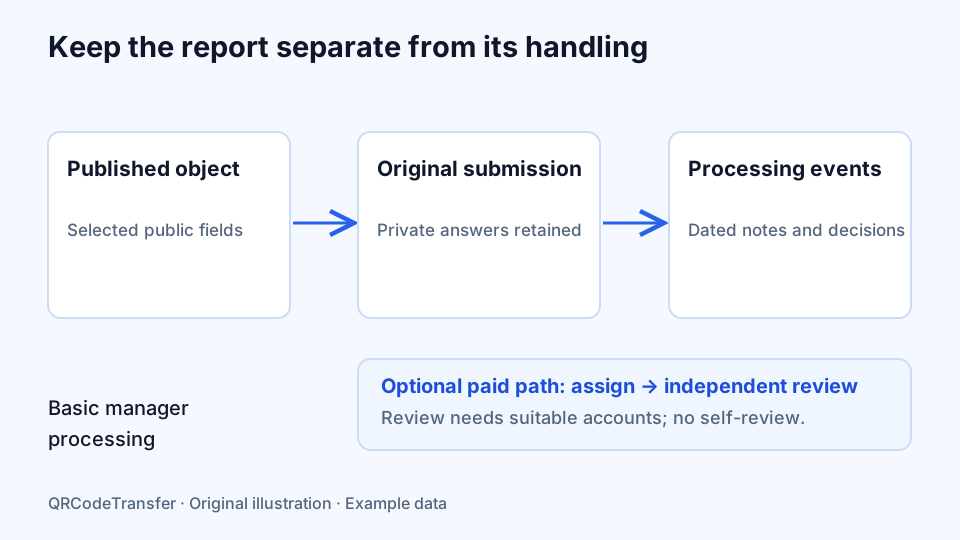
A submitted record retains its original answers and field snapshot. Processing notes and decisions become separate dated events. This helps you distinguish “what was reported” from “what the team did afterward,” rather than rewriting the report into the latest outcome.
Basic processing is available to Free managers. Paid review capabilities add assignment, deadlines and independent review. Configure at least two active members with suitable access when independent review is required; the person submitting a record cannot perform their own independent review. A plan feature does not automatically create another eligible reviewer or grant a member manager privileges.
Use the available state actions for the selected workflow. A submitted condition, feedback case, quantity movement or training acknowledgment does not necessarily have the same lifecycle. Read the record’s current state and dated events before deciding the next action.
Add repeating tasks when the process needs them
Compatible inspection, register and training presets can create hourly, daily, weekly or monthly tasks in an IANA time zone. Configure the published object, frequency and time settings, then check the next task time. Review the plan’s active-schedule allowance before enabling the schedule.
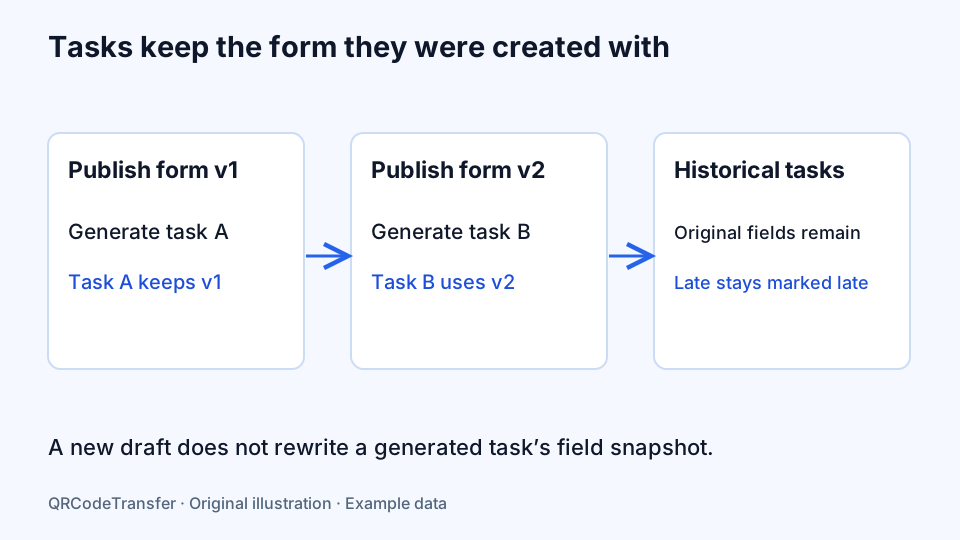
Generated tasks keep the fields published when they were created. If you publish a revised form, later tasks use that new revision while existing tasks retain their own questions. Overdue tasks remain visible; a later submission is marked late. This avoids making historical work appear as though it was completed on time merely because it arrived afterward.
Use task lists, notices and processing history within the website account workflow. These records do not include automatic WeChat identity, SMS delivery or blockchain certification. Do not assume a scheduled task is an emergency notification service.
Keep attachments tied to the right record
Workflow attachments support PNG, JPEG and PDF up to 5 MB each. They stay bound to the object, field and submission or task that owns them. Authorized workspace members can read them; an anonymous submitter sees only the permitted attachments in their own receipt.
Published page media has a different purpose and can be public. Do not place a private inspection photo or personnel document into a public page just to make it easier to share. Check the actual visitor view and the private record view as separate acceptance steps.
Understand capacity before a large rollout
| Default allowance | Free | Pro | Business | Business Plus |
|---|---|---|---|---|
| Register objects | 3 | 100 | 1,000 | 5,000 |
| Records per UTC month | 100 | 2,000 | 20,000 | 100,000 |
| Active schedules | 1 | 20 | 100 | 500 |
These are default capacities, not a promise that every workspace has identical overrides or team membership. Check the effective plan, attachment storage and review access on the current comparison. Records reset against UTC-month counting while each schedule uses its configured time zone. A downgrade retains records and export but available objects and schedules follow the remaining entitlement.
Export and interpret the records
Export CSV for the period you need. Keep the object reference and timestamps when combining exports with other systems, and check which time zone a report uses. An inventory movement is a recorded quantity change, not automatically an order, payment or accounting entry.
A QR link can be copied or shared. Account identity and timestamps provide a useful audit record, but do not prove physical attendance, a person’s GPS location or a qualified legal signature. The platform does not issue inspection accreditation or automatic regulatory approval.
Start with the register setup guide, continue to repeating tasks, and use an appropriate print layout for the physical object.