
Smart QR codes: device and time routing explained
Configure device, weekday and time rules, test overnight boundaries, choose a fallback and keep the printed QR address.
最近發佈更新
本文目錄
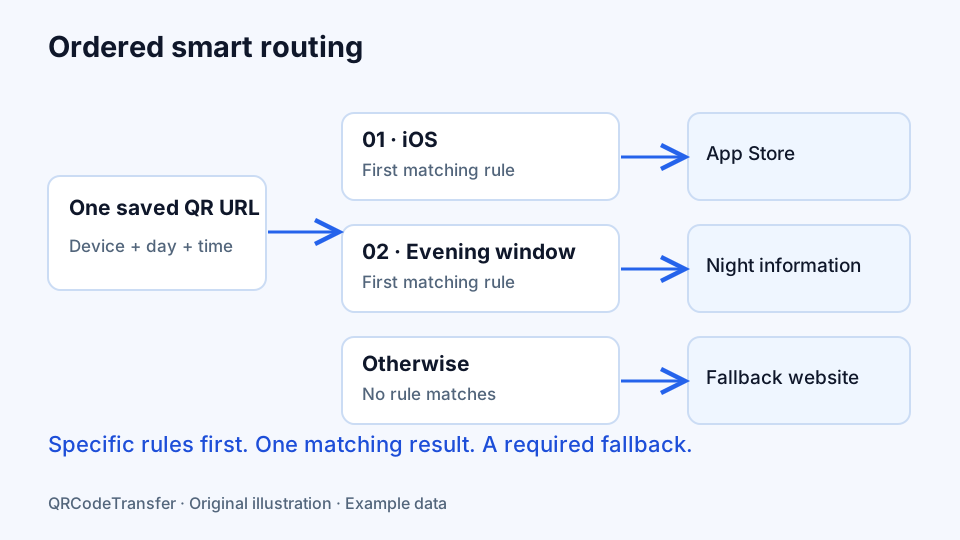
A poster can outlast a campaign, opening hours can change, and the same app is distributed through different stores. A smart QR code helps when one printed address should lead to different destinations according to a small set of predictable conditions. The useful part is the routing decision behind the address, rather than a special shape inside the printed image.
This guide explains the device, weekday and local-time rules available in QRCodeTransfer smart QR codes, how to test them, and when a simpler dynamic link is a better choice. The examples use illustrative destinations; create and test your own saved code before printing.
What a smart QR code actually checks
The saved address reaches a managed redirect. That redirect reads browser information, evaluates your rules in order and opens the first matching destination. Within a rule, the device, weekday and time conditions must all match. If no rule matches, it opens your required fallback URL.
| Condition | Use | Boundary |
|---|---|---|
| Device | iOS, Android, desktop or any device | Browser information is a signal, not proof of a person’s identity. |
| Weekday | Select days for a repeating campaign | No selected days means every day. |
| Local time | Use a start and end in the configured IANA time zone | The start is included and the end excluded. |
| Priority | Move a specific exception above a broad rule | Only the first matching rule is used. |
| Fallback | Provide a useful general destination | A valid HTTP or HTTPS URL is required. |
Choose the smallest routing model that works
For an app campaign that only separates iOS and Android, the app-download QR type may be enough. Use smart rules when a day or time condition also matters. For a restaurant, a weekday lunch rule can open one menu while a weekend evening rule opens another. For a service desk, a working-hours rule can open the contact page and the fallback can open self-service instructions.
When the visitor should choose among several links, use a multi-link page. When everyone should see the same destination, use an ordinary dynamic URL. Those choices avoid adding conditions that do not help the visitor.
Set up the rules in QRCodeTransfer
- Open the generator and choose More → Smart QR code, or start from the smart feature page. Sign in to the intended workspace.
- Enter a complete fallback URL and choose the campaign’s time zone. All rules use that zone, rather than the visitor’s phone clock.
- Add a rule with a recognizable name and complete destination. Select its device, weekdays and, if needed, both start and end time. Leave both times blank for an all-day rule.
- Move rules into priority order. Put narrowly targeted exceptions before broad matches.
- Use Test routing with a selected device and date/time. Inspect the chosen rule and resulting destination before saving.
- Select the platform domain or a ready custom scan domain, save the code and test its actual address.
An “any device, all day” rule placed first will match every visit and prevent later rules from taking effect. It is usually clearer to use the fallback for that general destination. A rule name helps you review the setup; it does not change how the conditions are evaluated.
Handle a time window that crosses midnight
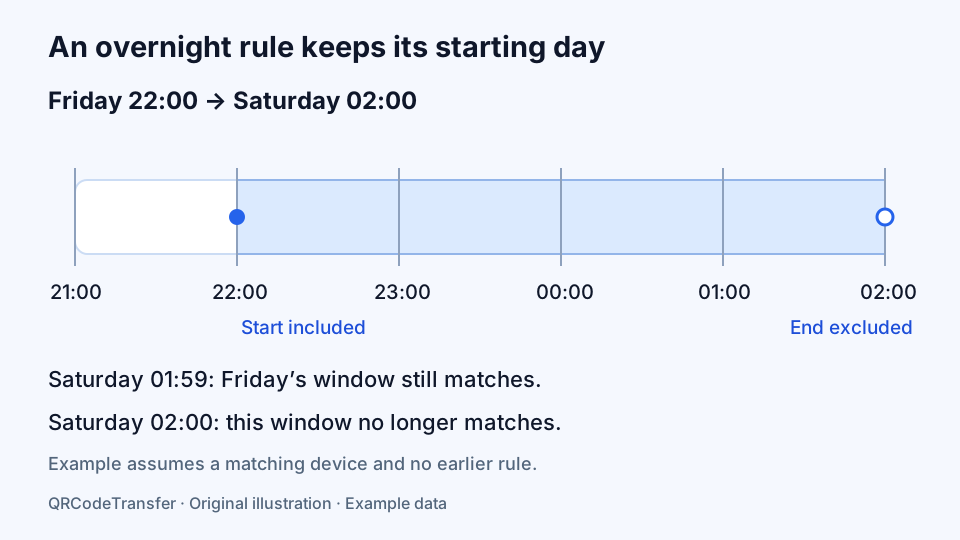
A Friday 22:00–02:00 rule includes early Saturday until 02:00. It belongs to Friday because that is when the window starts. Test Friday 21:59, Friday 22:00, Saturday 01:59 and Saturday 02:00. The first and last should fall outside this rule; the middle two should match, provided its device condition also matches.
Do not add Saturday just to keep Friday’s window open after midnight. Selecting Saturday adds another window starting Saturday night. Keep the weekday selection tied to the business schedule you intend.
Test overlap and the visitor experience
Test one matching visit, an unmatched visit, an overlap and each time boundary. The preview uses the server’s routing rules. Then scan the saved image on real phones to check the browser signal and destination behavior as well. A correct routing result cannot make a destination website available or remove that website’s login requirements.
Save a short checklist with the approved artwork: workspace, code name, scan URL, time zone, fallback and important boundary cases. If a teammate later changes the rules, that checklist makes the intended behavior easier to verify.
Update after printing, and understand the allowance
Edit the saved rules in the same workspace and save them. The original scan domain and path remain fixed, so the printed image can keep working. Changing the workspace’s default domain affects new codes, not old printed addresses.
Default smart-rule allowances are 3 per code on Pro, 10 on Business and 20 on Business Plus. A saved smart code also uses a dynamic QR allowance. Check the live plan comparison and the effective workspace entitlement; a feature or rule limit removed by a downgrade can make the code unavailable until adjusted or restored.
What the reports can and cannot tell you
General scan analytics describe visits to the managed code in a date range. They are not a per-rule conversion report. If the destinations belong to sites you control, use distinct URLs or appropriate campaign parameters and their own analytics to compare outcomes. A redirect visit is not proof of an installation, purchase or completed support request.
These rules do not provide country or language targeting, random traffic splits, dated campaign periods or authorization checks. They require internet access. For directly encoded information without a managed redirect, consider a static text, Wi-Fi or vCard code instead.
Continue with the smart-routing setup guide, check the scan-domain guide, and use the print size checker before ordering a batch.