
How to print QR labels from a CSV without mixing up the rows
Prepare clean columns, bind the right QR fields and preview a full sheet before exporting.
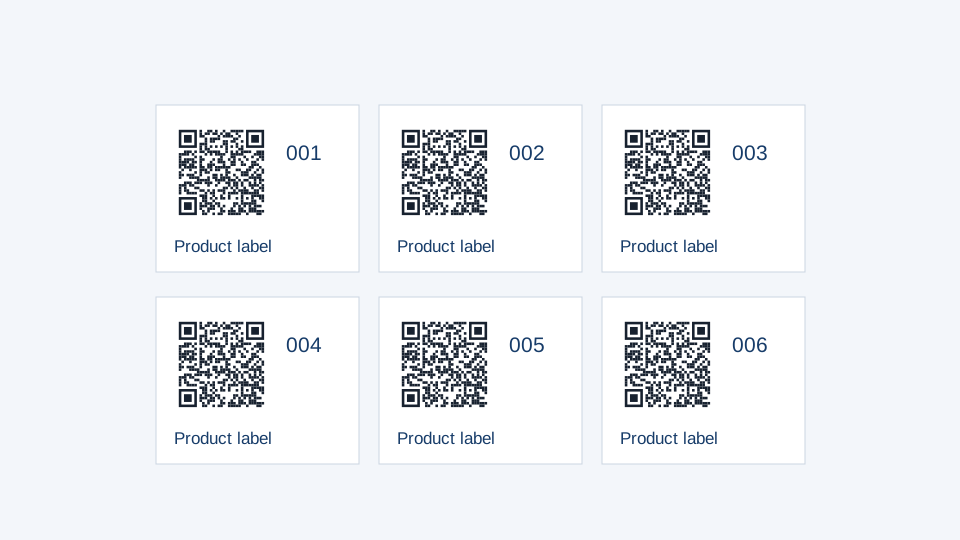
The difficult part of a label batch is often the connection between each name and its destination. A perfectly sharp QR code is still wrong if it opens the next product’s page. Prepare a small sample before importing the complete batch.
One row, one label
Choose a layout in the template library and download its sample CSV. The header shows the fields that layout uses. A basic product label uses name and url; a two-code layout also uses url2. Keep those names unchanged unless you also change the component bindings.
Use UTF-8 for names containing accents or non-Latin characters. Put values containing commas inside quoted CSV fields. Treat product IDs such as 001204 as text in your spreadsheet. Opening and re-saving a CSV in an application that converts numbers can remove those zeros before our importer sees them.
Choose static or managed destinations
For static labels, place each final address directly in the URL column. For destinations you want to change later, first use the bulk QR code generator while signed in, then choose saved workspace codes in the print studio. The workspace’s existing plan limits still apply to dynamic codes.
Bind and check
- Open the selected print template and import up to 200 data rows.
- Select each QR component and confirm which data column it reads.
- Check text placeholders such as {{name}} and {{sequence}}.
- Preview several different records, especially long names and non-Latin text.
- Switch to sheet preview and confirm order, gaps, copies and starting empty slots.
Two codes on a single label need two independent bindings. A useful pairing is a written manual and a video. Keep a visible caption under each so the visitor knows which one to scan.
Export the job, then print a sample
PDF includes all sheet pages. SVG and PNG export the current label or current sheet page. Check which mode is active before downloading. A downloaded layout backup preserves the editable document; it is not the same as a PDF sent to a printer.
Measure a sample sheet before using a full pack of adhesive stock. Printers can shift or scale artwork, and a nominal A4 page is not proof that its labels align with your particular stock. Adjust the paper margins and gaps, export again, and keep the verified layout for the next run.