
QR Code Campaign Tracking: UTM Links, Dynamic Codes and Scan Reports
Find out which poster, package or counter card brings useful visits. Build tagged URLs, assign a dynamic code to each placement and compare scan activity with website results using QRCodeTransfer’s existing tools.
Latest published update
In this article
- 1. Decide what a useful result looks like
- 2. Build a naming convention before making the QR codes
- 3. Set up the campaign in seven steps
- Step 1 — Prepare the destination
- Step 2 — Build the tagged URL
- Step 3 — Create a managed dynamic QR code
- Step 4 — Create the other placements
- Step 5 — Export and decode the actual artwork
- Step 6 — Follow the redirect on a phone
- Step 7 — Launch with a repeatable review
- 4. Give each placement a separate identity
- 5. Read the scan report with the right definitions
- 6. Compare website results without inventing attribution
- 7. Test the complete journey before printing
- 8. Diagnose the most common reporting problems
- The website shows no campaign data
- Every placement appears as one item
- Scan totals increase during internal checks
- The QR image decodes but the page is wrong
- A date seems to be missing
- 9. Keep the printed code useful after the campaign changes
- 10. Frequently asked questions and useful tools
- Can I use UTM parameters in a static QR code?
- Does the UTM builder connect Google Analytics for me?
- Can one printed QR code identify several locations?
- Can I automatically see sales or exact visitor locations?
- Which parts can I try without an account?
You place the same promotion in a shop window, on a counter card and inside a parcel. A month later, the website has more visits—but which placement helped? A QR image alone cannot answer that question. You need a clear relationship between the printed item, its destination and the result you intend to measure.
This guide connects tools already available in QRCodeTransfer: the UTM link builder, dynamic QR codes, scan analytics, the QR image scanner and the print size checker. The example is a small autumn campaign, but the same method works for trade-show handouts, product inserts, menus and local events. All addresses, campaign names and figures below are illustrative; they are not customer results.
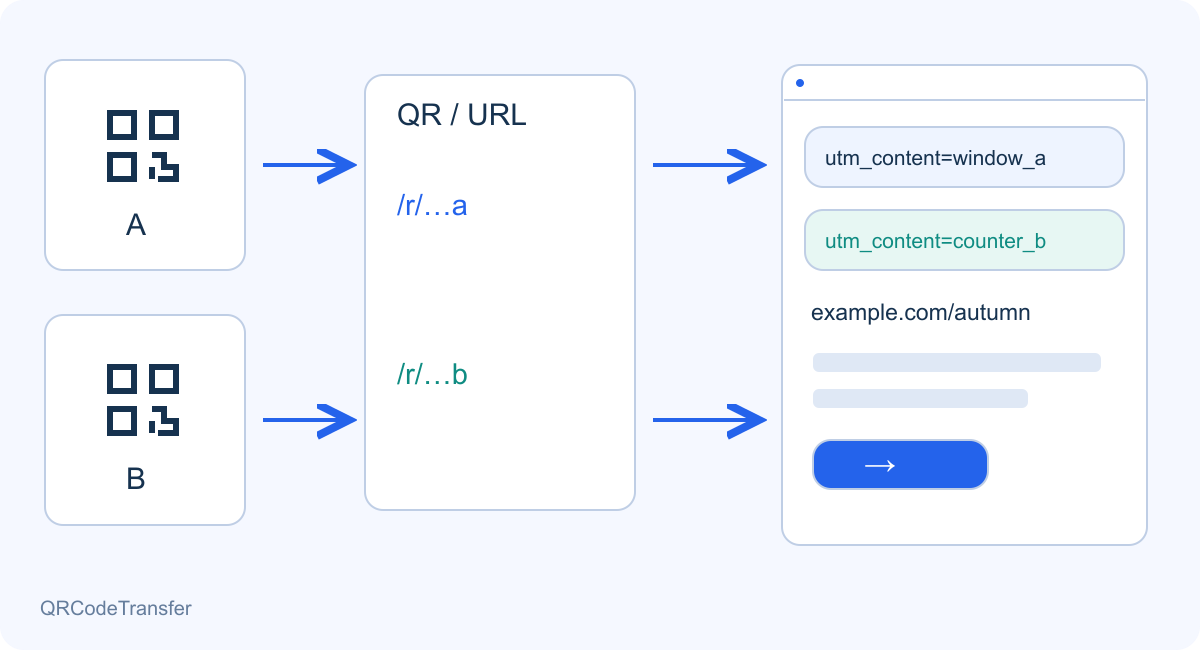
Figure 1. One campaign page, separate placement identities. The diagram explains the measurement design; it is not a screenshot of customer data.
1. Decide what a useful result looks like
Start with one question: do you want people to open a menu, request a quote, register for an event or download a guide? Choose one primary action and a destination that makes it easy. Sending every printed item to a general homepage makes both the visit and the analysis less useful.
Keep three layers separate. QRCodeTransfer records activity through a managed dynamic redirect. UTM parameters label the destination URL so compatible website analytics can classify the arrival. A completed inquiry, purchase or registration must be measured by the website or the system handling that action. Creating a tagged URL does not install analytics or connect a Google Analytics account.
Choose the dates, placements and person responsible before launch. Keep a campaign register with the placement name, asset name, printed scan address, tagged destination, start date and any later change. This small record is essential when the same design is printed by different shops or suppliers.
2. Build a naming convention before making the QR codes
Use one documented spelling for every value. In this example, store is the source, qr is the medium and autumn_launch is the shared campaign. The content value identifies the physical item. Lowercase letters and underscores are a practical team convention; do not switch between window_a, Window-A and windowA halfway through a campaign.
The builder currently exposes five familiar fields. Use source, medium and campaign together, then add content when you need to distinguish placements. Term can stay empty for this offline example. The tool creates labels; it does not decide which naming scheme fits your organization or guarantee a particular channel grouping in another analytics product.
| Field | Purpose in this example | Example value |
|---|---|---|
| utm_source | Where the material is distributed | store |
| utm_medium | Your chosen channel label | qr |
| utm_campaign | The shared campaign identifier | autumn_launch |
| utm_content | The placement or creative version | window_a |
| utm_term | Optional keyword label; unused here | — |
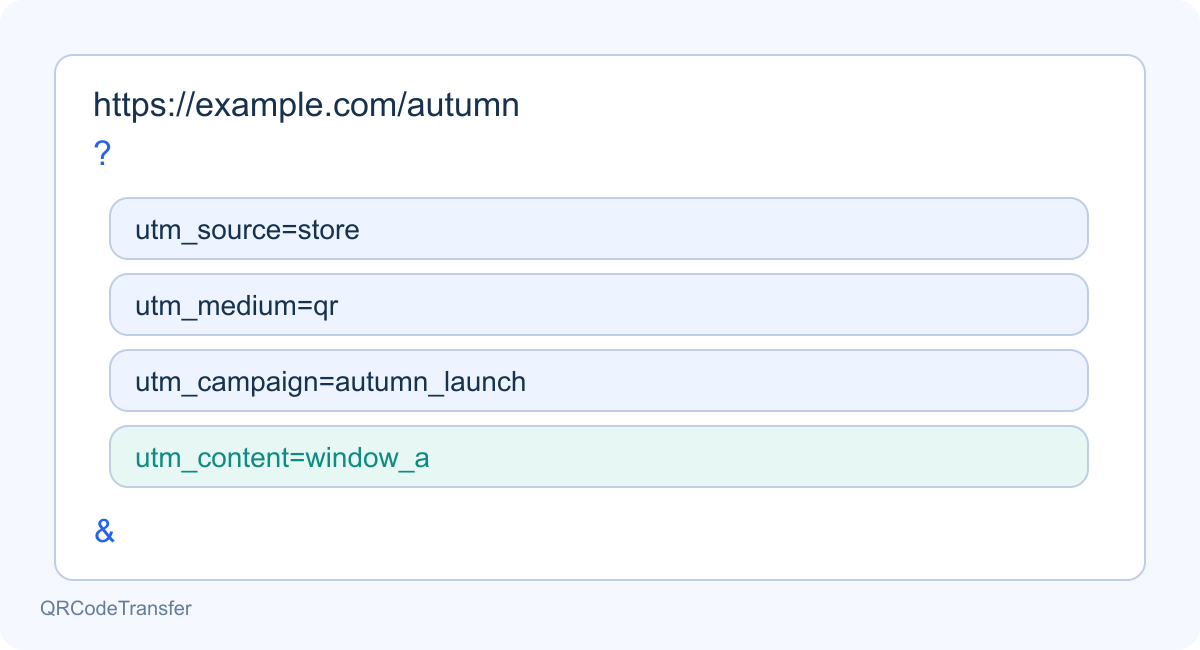
Figure 2. Keep the campaign stable and change the content value for each placement. The UTM field names remain the same in every language.
The following is a demonstration URL. Replace example.com with your own tested destination. Enter the base address in the builder rather than manually placing parameters after a page fragment.
https://example.com/autumn?utm_source=store&utm_medium=qr&utm_campaign=autumn_launch&utm_content=window_a
Google’s documentation confirms that campaign values are case sensitive and can populate acquisition reports.
Google Analytics: campaign URL documentation
3. Set up the campaign in seven steps
Step 1 — Prepare the destination
Open the exact landing page on a phone. Confirm its product, offer, language and primary action. If your website uses analytics, ask its owner to verify that campaign parameters and the chosen completed action are actually collected.
Step 2 — Build the tagged URL
Open the UTM link builder. Enter the website URL, source store, medium qr, campaign autumn_launch and content window_a. Build the tagged URL and copy the entire result. Existing unrelated query parameters should remain part of the address; inspect the output before using it.
Step 3 — Create a managed dynamic QR code
Sign in to the correct workspace and open the dynamic QR workflow. Use the complete tagged URL as the destination and choose dynamic mode. Name the asset so that the campaign and placement are recognizable, for example autumn_launch — window_a. Check the current workspace allowance before creating all planned variants.
Step 4 — Create the other placements
Repeat the process for counter_b and parcel_insert. Keep the shared campaign values, change the content value and create a separate dynamic asset for each placement. Record the resulting scan address next to the physical item. Do not distribute the window image to every location if location comparison matters.
Step 5 — Export and decode the actual artwork
Apply the intended QR design and export the image. Open the QR code scanner tool and select a supported image to read what is encoded. A dynamic image should contain its managed scan address; the tagged website URL is the destination behind that address. For PDF artwork, inspect an exported image or the printed sample as well.
Step 6 — Follow the redirect on a phone
Scan the exported or printed code. Check the final destination, its parameters and the primary action. Open Analytics in the same workspace, select a date range that includes the test and allow for the UTC date boundary. Record your test time because quality checks can contribute activity.
Step 7 — Launch with a repeatable review
Place each verified image with its intended artwork. Record the launch date and review the same period across your scan report and website analytics. When a result is unexpected, check the journey and measurement setup before changing the offer or printing a new batch.
4. Give each placement a separate identity
If every poster contains exactly the same QR address, the redirect report cannot tell which physical poster was scanned. Design the separation before exporting the images. Different names in a spreadsheet cannot create distinctions that the encoded links do not contain.
| Printed placement | Dynamic asset name | utm_content |
|---|---|---|
| Shop window | autumn_launch — window_a | window_a |
| Counter card | autumn_launch — counter_b | counter_b |
| Parcel insert | autumn_launch — parcel_insert | parcel_insert |
All three destinations may open the same page and share source, medium and campaign. Their scan identities and content values remain different. Put the matching file name on each print brief and check a sample from every placement. If you deliberately reuse one code, treat its results as a combined total.
5. Read the scan report with the right definitions
The member Analytics page shows total scans, estimated unique scans, daily activity and counts by asset. It offers 7-, 30- and 90-day shortcuts, a custom range of up to 366 days ending today or earlier, and a daily CSV export. That range limit is a query rule, not a promise about how long data will be retained. The daily CSV contains dates and scan totals; it is not a conversion export or a UTM attribution report.
Total scans are recorded visits through the managed redirect, not verified camera actions or confirmed people. Opening the scan URL directly and repeating quality checks can add visits. Unique scans estimate distinct IP-and-browser hashes within the selected workspace and period. A shared network can merge visitors, while changes of browser or network can separate visits from one person. Do not add unique figures from separate reports and call the sum unique customers.
The chart and daily CSV use UTC calendar days. A late-evening local visit may fall on a different reporting date. Compare the same workspace and interval, and check the timezone used by your website analytics. Static QR codes bypass the managed redirect, so QRCodeTransfer cannot record their direct scans. A selected window of zero activity is not proof that the printed item was never seen.
6. Compare website results without inventing attribution
The following invented example illustrates how to discuss results responsibly. Assume the website measurement has been checked and each placement uses its own content value. The completed action is a quote request; none of these values comes from a real customer campaign.
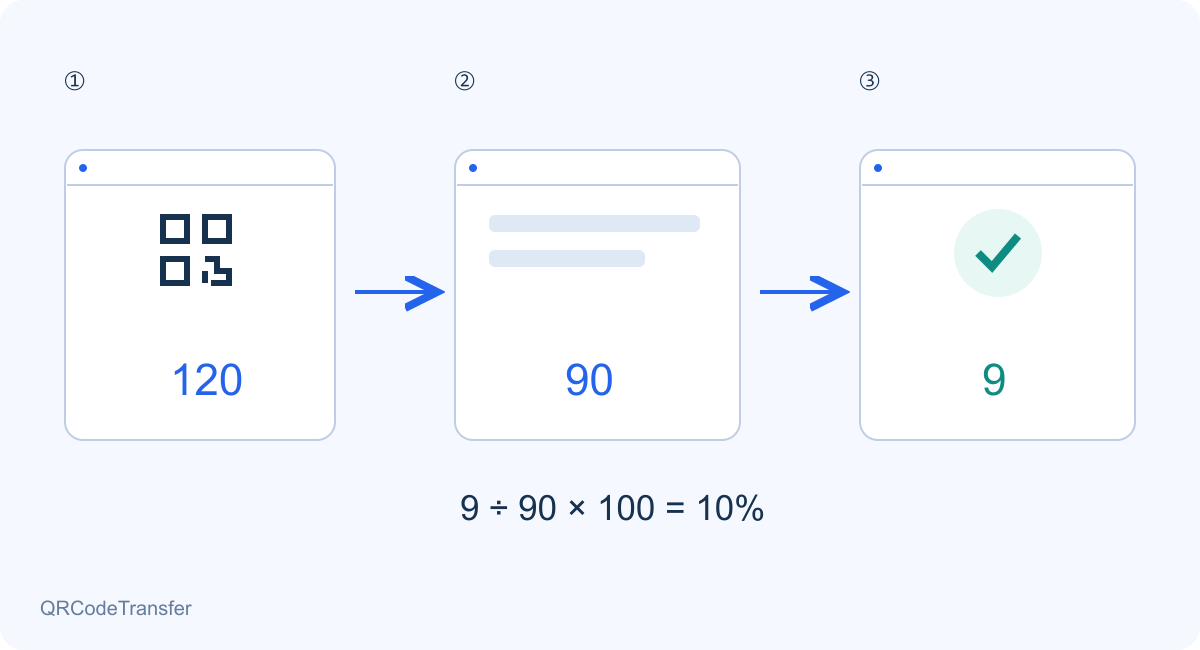
Figure 3. Illustrative numbers only. Redirect activity, website sessions and completed actions come from different measurements and do not have to match.
| Placement | Redirect visits | Website sessions | Quote requests | Requests / sessions |
|---|---|---|---|---|
| Window A | 120 | 90 | 9 | 10% |
| Counter B | 60 | 45 | 9 | 20% |
Window A generated more recorded activity. Counter B produced the same number of requests from fewer measured sessions. Its illustrative session-to-request rate is 9 ÷ 45 × 100 = 20%; Window A is 9 ÷ 90 × 100 = 10%. The denominator is website sessions, not QRCodeTransfer’s estimated unique scans. This calculation describes this example and does not prove that the placement caused the difference.
Redirect totals and website sessions differ because they measure different stages. Repeated openings, a page closed before loading, browser restrictions, consent choices and analytics configuration can all affect the counts. Report the observed numbers alongside their definitions. Do not present the gap as an exact count of lost customers.
Review page speed, the promise on the printed material, the visibility of the action and the distribution context. A high scan count with weak website results may call for a clearer landing page. Few scans may justify checking placement and readability first. Do not claim return on investment without reliable cost and revenue data, or a completed sale merely because a QR link was opened.
7. Test the complete journey before printing
- The correct workspace owns every dynamic code and each code is active.
- Each physical placement has the intended asset, image and UTM content value.
- The final website and primary action work on a phone without an administrator login.
- The redirect chain reaches the expected page and the required campaign parameters survive.
- The exported image decodes to the expected address; a printed sample also scans at actual size.
- The print size checker has been used as preparation, followed by checks on the real material and lighting.
- The scan report and website analytics use a documented, comparable reporting period and timezone.
- The campaign register records quality-test visits, launch dates, owners and destination changes.
8. Diagnose the most common reporting problems
The website shows no campaign data
Check that analytics is configured on the destination and allowed to run in the test browser. Inspect the actual final URL for missing or replaced parameters. A generated UTM link cannot repair a website that does not collect campaign data.
Every placement appears as one item
Decode the distributed images. If they all contain one managed address, their redirect activity is combined. If different assets point to an identical content value, website reporting may also merge them. Correct the mapping before the next print run.
Scan totals increase during internal checks
Direct openings and repeat tests can appear in recorded activity. Keep a quality-test log and compare the intended launch interval. Do not promise that the system automatically removes every test visit or all automated traffic.
The QR image decodes but the page is wrong
Successful decoding only establishes that the matrix can be read. Check the saved destination, asset status and any subsequent website redirects. Test the final call to action as well as the first page.
A date seems to be missing
Confirm workspace, dynamic mode, active status and the UTC start/end dates. Compare the daily chart with an export made for the same interval. A local calendar date and a UTC calendar date are not always the same day.
9. Keep the printed code useful after the campaign changes
A managed dynamic code keeps its printed domain and path while you update the destination in the same asset. When an offer ends, direct visitors to a relevant follow-up page instead of abandoning the printed material. Keep campaign tags that still describe the original placement, and record the effective time of the destination change. Earlier events do not become a new campaign simply because the URL is edited.
Changing an asset name or destination does not create a fresh historical identity. Use date ranges and your change log to interpret a reused code. For a truly separate new campaign, create new identities before distributing new artwork. Keep the account, allowance and scan domain usable; if a custom domain is involved, its DNS and HTTPS must also remain operational. A code’s continuity depends on that address staying available.
10. Frequently asked questions and useful tools
Can I use UTM parameters in a static QR code?
Yes. A static image can encode a tagged destination, and a properly configured website can interpret that URL. It does not gain QRCodeTransfer redirect analytics or an editable managed destination. Longer encoded URLs can also make the pattern denser; check the real print.
Does the UTM builder connect Google Analytics for me?
No. It builds a URL. Your website must have its own analytics setup and any required collection settings. QRCodeTransfer’s scan report and the website’s acquisition report remain separate measurements.
Can one printed QR code identify several locations?
The same encoded address carries the same placement identity wherever it is printed. Use separate managed codes and consistent destination tags when you need a location comparison. A location name added only to a print-order document is not present in the scan.
Can I automatically see sales or exact visitor locations?
Opening a link does not establish a sale. Sales and inquiries need measurement in the relevant business system. GPS is a separate consent-based capability; do not assume every scan includes coordinates or infer a precise visitor location from the chosen placement name.
Which parts can I try without an account?
The public UTM builder, image scanner and print size checker are available as tools. Saving managed dynamic codes and viewing workspace analytics requires signing in. Asset capacity and access follow your current workspace and plan; check pricing and current allowances before a large rollout.
Start with one campaign, two placements and one clearly defined website action. Build and verify the links first, then expand the print run only after the complete journey is working.