
QR Codes for Product Manuals: Keep PDFs and Videos Up to Date
Build a useful manual QR code with PDF instructions, a video demonstration and a clear mobile hub. Learn how to publish updates without replacing the printed address, and what to test before printing.
Latest published update
In this article
- Choose the destination before designing the label
- One PDF
- One video
- PDF plus video hub
- Build the manual workflow in QRCodeTransfer
- 1. Gather the right files and model details
- 2. Create the PDF destination
- 3. Create the video page
- 4. Add a mobile manual hub if needed
- 5. Choose the scan address before printing
- 6. Check access and publish deliberately
- Update the instructions while keeping the printed address
- Prepare a label people can actually scan
- Common mistakes and their fixes
- A generic homepage opens
- The wrong revision is still visible
- A playback interval is mistaken for file editing
- A hidden download button is treated as access control
- A practical release checklist
- Questions worth answering before launch
- Does the PDF live inside the QR code?
- Can every printed code be updated?
- Will a hosted manual work offline?
- Create your first manual QR code
A customer has unpacked your product and needs one specific answer: how to assemble it, connect it or replace a part. Sending that person to your homepage adds unnecessary searching. A manual QR code should open the right instructions for the exact model, with a clear next action. The useful part is not the square on the box; it is the content and maintenance process behind it.
Choose the destination before designing the label
One PDF
Use a PDF QR destination when a single document answers the question. It is a direct route to a manual, but customers may need to zoom and scroll. Make the model and document version obvious. A static QR code keeps the URL originally encoded; changing that address later requires control of the URL or a new code.
One video
Use a video page when showing an action is more helpful than describing it. A short, focused demonstration suits installation or a repeated support question. Add a meaningful title and poster rather than requiring visitors to guess what the play button will show.
PDF plus video hub
Use a multi-link page when the same product needs both. Publish the PDF and video destinations, then add clearly named links to a mobile hub. This is a set of linked pages, not an automatic conversion of a PDF into a video. Keep the printed code pointed at the hub.
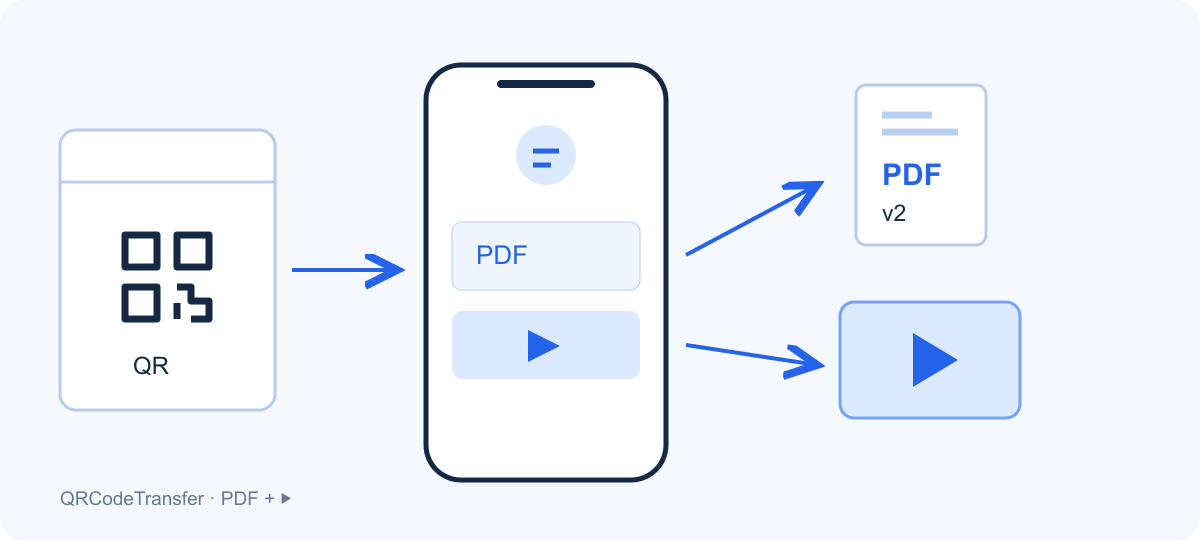
Illustration: a printed product label opens a mobile hub with separate PDF and video destinations. The QR icon is illustrative, not a live code.
Build the manual workflow in QRCodeTransfer
1. Gather the right files and model details
Use the approved PDF and a demonstration for the same model. Remove internal notes before uploading. Record the model number, document language and revision date. A file named manual-final-new-2.pdf gives customers less confidence than a clear title such as “Model A — installation guide — revision 2”.
2. Create the PDF destination
Open the workspace and choose the PDF workflow. Upload the document, or choose an existing PDF from the file library. For several documents, use a PDF collection and name each entry by its purpose. Check the selected file before publishing: reusing an existing file does not mean its contents have been reviewed.
3. Create the video page
Open the video QR workflow, upload or select the existing video, and set its title, description and poster. Choose the viewing ratio and fit, then set an optional playback start and end. Configure fullscreen and original-download options for the intended experience. Save, preview and publish the page.
4. Add a mobile manual hub if needed
Create a multi-link page and add the published PDF and video URLs. Use action labels such as “Read the installation PDF” and “Watch the filter replacement”. Put the most common task first. Add a support link and a visible model identifier so customers can confirm they have the right instructions.
5. Choose the scan address before printing
Use the platform scan domain, or select a custom domain that has completed verification and HTTPS activation. Check the final host and path in the generated code. Setting a different default domain later affects new links; it does not rewrite the identity of an already printed code.
6. Check access and publish deliberately
Preview is for review; publish the intended version before distributing the code. A PDF page, video page and separate hub can each use a published-page allowance, and hosted videos also use the video allowance. Check the workspace’s current limits and pricing. Do not assume that the full three-page setup fits a plan just because static QR downloads are free.
Update the instructions while keeping the printed address
Keep the same managed asset and scan address. Upload the revised PDF, select it in the relevant document entry, and publish the update. For a separate hub, change the appropriate link only when its destination has changed. For a video page, review the source, poster and playback settings together. Saving a draft alone does not replace the published version.
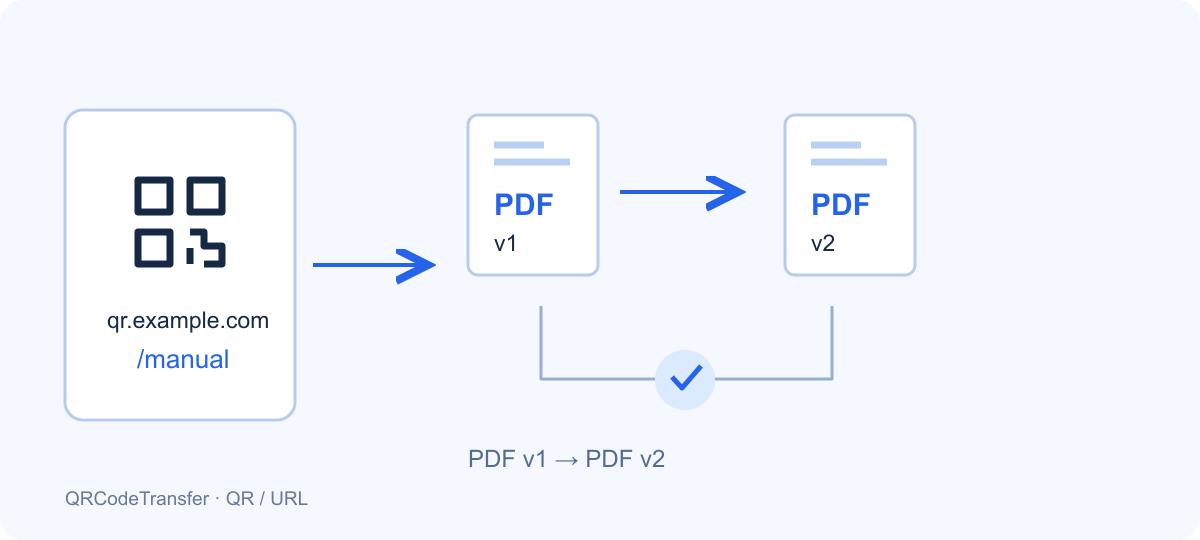
Illustration: the same example scan address points to a newly published PDF revision. The example domain is not a configured customer domain.
After publication, scan a previously printed sample on a phone and check the actual file or video that opens. Retain a simple record of the model, revision, approval date and person responsible. If a released version is wrong, restore the approved content in the same asset and republish rather than generating another label as the first response.
Prepare a label people can actually scan
Use dark modules on a light background and preserve the empty border. DENSO WAVE specifies a quiet zone four modules wide on each side of a standard QR code. Keep captions, decorative frames and logos out of that space. Choose a real physical size with the print-size checker and test it at the intended scanning distance; there is no single size that works for every package, camera and material.
Prefer vector artwork when your print workflow accepts it. If you use a raster export, set physical width and DPI together and avoid enlarging a small image in the layout application. For example, 25 mm at 300 DPI is about 295 pixels wide: this is an export calculation, not a guarantee of readability. Use the CMYK workflow when the printer needs explicit ink values, then approve a physical proof on the actual stock.
Printing reference: DENSO WAVE — determining the QR code area.
Common mistakes and their fixes
A generic homepage opens
Replace a vague destination with the model-specific manual or hub. Do not make the customer search your navigation.
The wrong revision is still visible
Check that you published the update and tested the printed address, rather than only opening the editor preview.
A playback interval is mistaken for file editing
Start and end settings control the viewing interval; they do not export a physically shortened video. Edit the original file separately when material must be removed.
A hidden download button is treated as access control
The visitor page is for shared content. Hiding a download button does not make the underlying material confidential. Keep private documents out of the public manual.
A practical release checklist
- The PDF, video and model identifier describe the same product.
- All public links work without an administrator login.
- The intended content is published and within the workspace allowance.
- A previously printed sample opens the new revision.
- The label scans at actual size on more than one phone.
- Support ownership and the next document review are recorded.
Questions worth answering before launch
Does the PDF live inside the QR code?
No. A normal manual QR code contains a URL. The document or viewing page is loaded after the visitor opens that address.
Can every printed code be updated?
No. You need control of the address encoded in it, or an existing managed QR asset. A new account cannot take over an unrelated printed domain and path.
Will a hosted manual work offline?
Opening the hosted page or file normally needs a network connection. Customers can keep a downloaded PDF when downloads are available; that saved copy will not automatically receive later revisions.
Create your first manual QR code
Start with the single destination that answers your most frequent support question. Add a hub when it improves the customer journey, and maintain it as part of the product documentation process.